Summarize this article with AI
Your Google Search Console MCP connection can look healthy and still give you a misleading answer. The assistant might use the wrong property or compare a partial month with a complete one. Google's Search Analytics API also returns top rows, not a guaranteed full dataset.
Start with SEO Heatmap when you need page-click trends from a prepared, aggregated reporting layer. It retrieves available page rows beyond the interface's 1,000-row export and gives the assistant comparisons it can use directly. This guide helps you choose that route or a raw GSC server, connect it, and check the first result.
Key takeaways
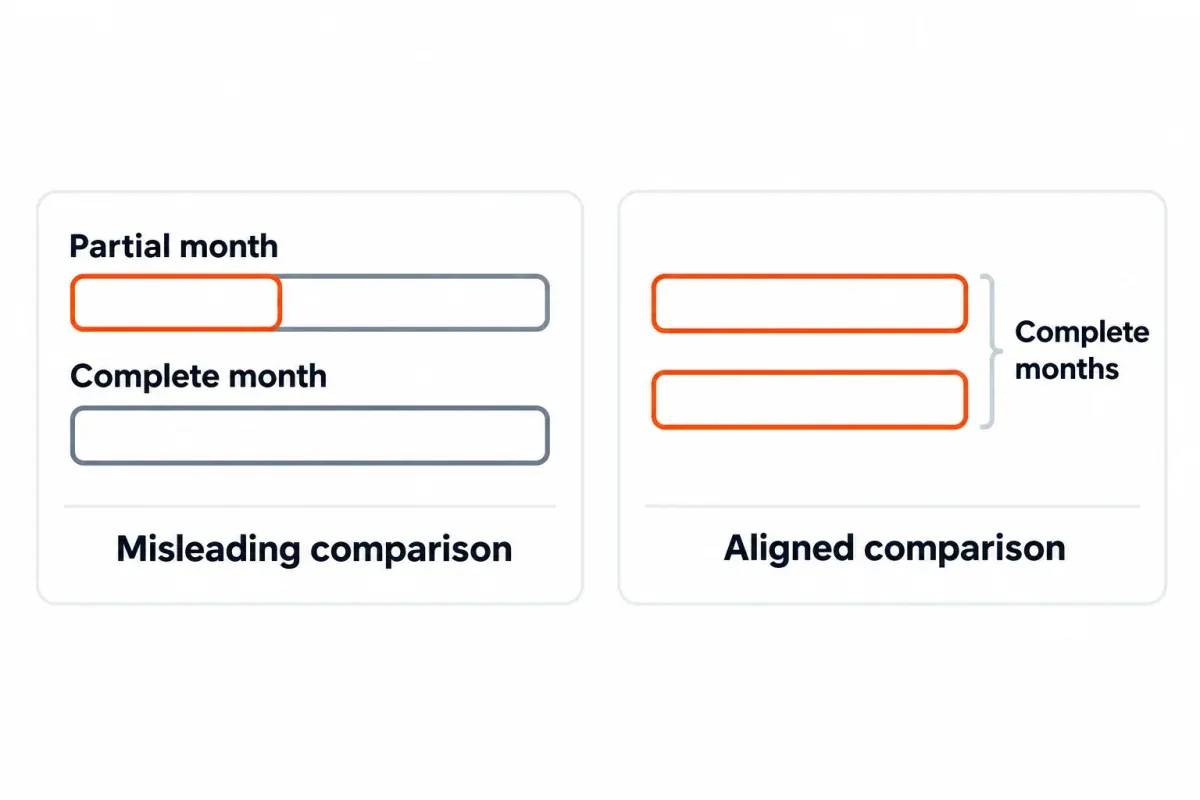
- For questions such as “Which pages lost clicks last month?”, start with SEO Heatmap's MCP server. It gives an assistant prepared page-level click data, comparisons and opportunity tools. It's our product; the free plan covers one property.
- You'll need the relevant Search Console APIs to ask about search queries, impressions, CTR, average position or URL inspection, so choose a connector that exposes them. SEO Heatmap's MCP tools focus on clicks by page.
- Treat a successful connection as the start of a check. Confirm the property, dates, data fields, last sync and one result against Search Console before acting on a recommendation.
What is a Google Search Console MCP server?
A Google Search Console MCP server lets an AI client call tools that retrieve or analyze Search Console data. MCP defines how the client discovers and calls those tools. Each server decides which data it fetches, what it stores and whether it offers actions beyond reading reports. A server can run on your computer or at a remote URL.1 The MCP architecture guide explains those two arrangements.
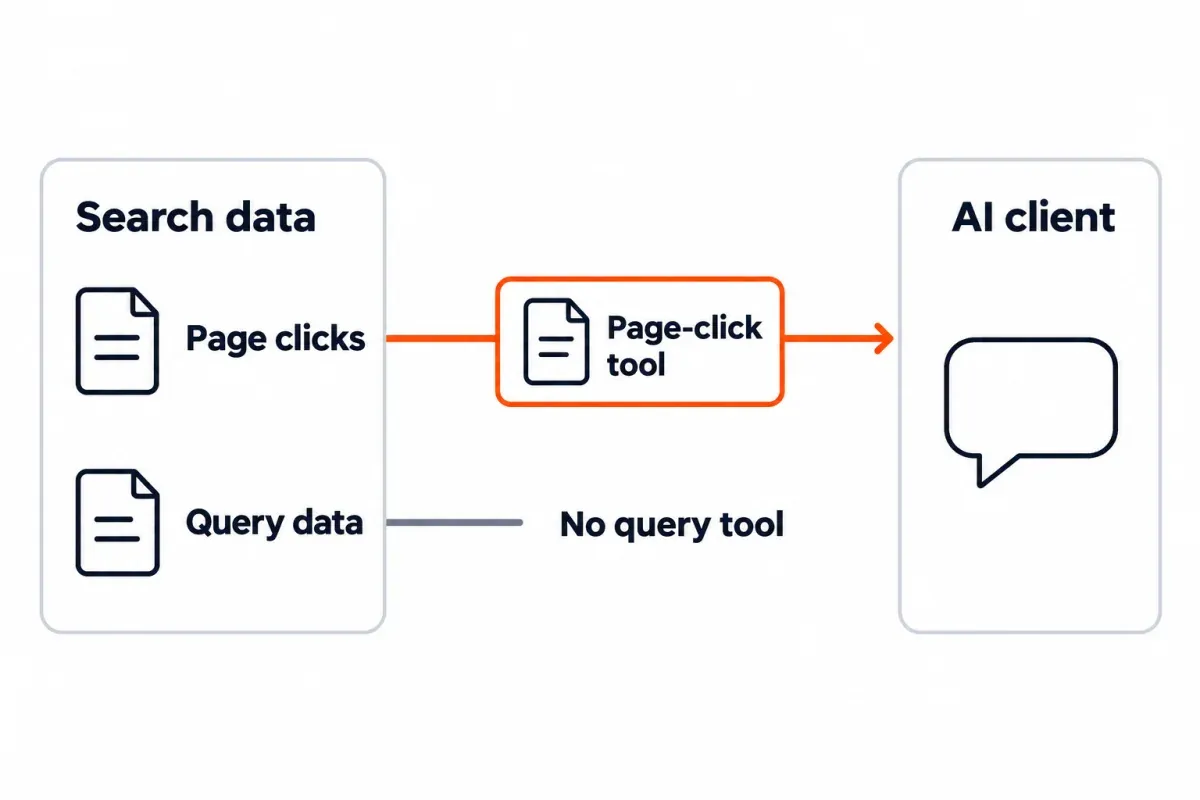
The path is simple: your question → AI client → MCP tool → Search Console data or a prepared copy → answer. The important part is the tool in the middle. A connector that exposes page clicks cannot answer a query-level ranking question, even if both connectors are labeled “GSC MCP.”
Google publishes an Analytics MCP server for Google Analytics data.2 Analytics and Search Console measure different things. That page is not evidence that Google provides a Search Console MCP server; check who maintains any GSC connector you install.
Start with SEO Heatmap for page-click analysis
Our starting recommendation for decisions about pages is SEO Heatmap. Search Console already records the clicks. Beyond the interface export's 1,000 rows, SEO Heatmap keeps paging through the available page data. The stored reporting layer has clicks grouped into calendar periods for each page. The assistant gets comparisons and shortlists through MCP, without having to fetch and add up the raw rows. You might call that a golden layer: cleaned, aggregated data prepared for a specific decision.
| Task | Raw Search Analytics route | SEO Heatmap MCP route |
|---|---|---|
| Find pages whose clicks fell | Request page rows for each period, paginate, join URLs and calculate changes | Ask find_opportunities for decaying pages or compare_periods for the drop |
| Find the folders behind a decline | Group page URLs and total each group's clicks | Ask get_sections for a section rollup |
| Review one URL over time | Collect and align period rows | Ask get_page_history for its monthly, weekly and quarterly view |
The MCP setup page documents tools for site overviews, period comparisons, sections, pages and opportunities. Syncing in SEO Heatmap gives you a rolling 16-month and 16-week window. Its MCP reports exclude the incomplete current period by default, unless you request it. You'll also find rising and falling filters beside the heatmap in the dashboard, along with year-over-year comparisons and Sheets or Excel export. One property and MCP access are included in the free plan.
“Every page” needs one boundary: SEO Heatmap paginates the page rows that the Search Console API makes available. Google says the Search Analytics API returns top rows and does not guarantee every data row.3 No MCP layer can restore rows Google never returns.
Its tools do not include queries, impressions, CTR, average position or live URL inspection. Lost clicks may leave you wondering which searches changed. That follow-up needs Search Console, or a raw GSC connector to use alongside SEO Heatmap.
Match your SEO question to a server's capabilities
Start by listing the fields needed for your question. A connector that can't supply them won't give you a useful answer, even if you've successfully set it up.
| Your question | Route to consider | What to check before connecting |
|---|---|---|
| “Which pages or sections lost clicks?” | SEO Heatmap MCP | It reports stored page clicks; check the sync time and exact property. |
| “Which queries lost impressions or positions?” | A raw GSC server, such as AminForou/mcp-gsc or Suganthan's server | Confirm Search Analytics tools expose query, impressions, CTR and position, plus your desired search type. |
| “What does Google know about this URL?” | A server with URL Inspection, or Search Console itself | The API reports the indexed version; it cannot run the UI's live URL test. |
| “Can I combine GSC with other reporting sources?” | A hosted data connector such as Windsor.ai or Coupler.io | Check fields, refresh schedule, data storage and plan access. Coupler says MCP requires at least its Professional plan. |
| “I only need a one-off spreadsheet.” | Export through SEO Heatmap or use the Search Analytics API | An MCP connection may be unnecessary for a one-time file. |
The map shows capabilities; we haven't ranked test results. Tools and plan terms can change with the maintainer. Read a provider's current tool list before giving it Google access. And if a directory links you to Google's Analytics MCP page, remember that it serves GA data, not GSC data.
Connect SEO Heatmap's remote MCP server
The main route needs a Search Console property and an AI client that accepts a remote MCP connector. Check your client's connection steps and support in the SEO Heatmap setup guide.
- Sign in with a Google account that can open your Search Console property in SEO Heatmap. Select the intended Domain or URL-prefix property and let the first sync complete.
- Open the heatmap and find a page you recognize. Seeing that page confirms you've got data for the intended property before you bring in another interface.
- In your AI client's remote connector settings, enter
https://www.getseoheatmap.com/mcpand complete the SEO Heatmap sign-in./mcp-serveris the help page;/mcpis the connector endpoint. - Have the assistant run
list_sitesto begin. Match the returned property ID to the property in Search Console and note the last sync time. - Run one bounded question using a complete period, then spot-check the result as described below.
Anthropic's remote connector documentation says a Free account can add one custom connector; workspace plans may require an owner to add it first.4 Other clients have different controls.
Copy this first prompt:
Use list_sites to show my available Search Console properties and each last sync time. For the property I choose, use a complete month to find five pages with the largest click losses versus the preceding month. Show the two periods, clicks in each, absolute change and percent change. Name the tool and field used for every figure. Page clicks alone can't establish a change in queries or rankings.An empty property list means you need to check access or complete the first sync before moving on to analysis. If queries or positions appear in an answer based only on SEO Heatmap, ask which tool supplied them. This server doesn't document access to those fields.
Use a raw GSC server when you need queries or inspection
Google's Search Analytics API can group clicks, impressions, CTR and average position by dimensions such as query, page, country and device.3 A raw server is useful when you need those dimensions, want to set filters yourself or need to inspect a URL. The AminForou project and Suganthan's guide document local servers with Google credential setup. Use each maintainer's current install instructions: package names, tool sets and client configuration can change.
Local-server setup checklist:
- Pick the exact Search Console property. For Domain properties, the ID begins
sc-domain:. URL-prefix properties use their full prefix as the ID, protocol included, plus the trailing slash if present. - Create or select the Google Cloud credentials specified by the server you're installing. With a service account, you'll have to give it access to the property in Search Console. Using OAuth? Review its consent scopes.
- Install it as the latest README describes. Your client's local MCP configuration then needs the server command and environment variables. Keep shared repositories free of credential files.
- Sort the tools you've installed into reporting, inspection and site or sitemap actions. Limit access to what the task requires.
- Try a small query against one property, covering one complete date range. That row is worth comparing in Search Console before you let the assistant attempt a full diagnosis.
For example, after SEO Heatmap identifies a page whose clicks fell, a raw Search Analytics query grouped by query and filtered to that page can help locate searches that changed. URL Inspection answers a different question: it reports Google's indexed version of a URL, not a live crawl test.5
You can avoid local installation by choosing a hosted service. But it introduces a vendor account and a decision about who handles the data. Check the fields and periods delivered to the assistant, the vendor's storage of any copy and your plan's inclusion of MCP. Do not infer a connector's capabilities from “GSC” in its name.
Test the first answer before using it
A green connection badge proves the client reached a server. It says nothing about the accuracy of the chosen property or comparison dates. Allow five minutes to try a small acceptance test.
Acceptance checklist:
- Property: Record the exact Domain or URL-prefix ID returned by the tool. A Domain property can include several hosts; a URL-prefix property is narrower.6
- Source and freshness: Record the server and tool name, last sync time, search type and whether the period is complete. Search Console's recent data can be incomplete; the API defaults to finalized data unless requested otherwise.3
- Fields: Have clicks, impressions, CTR and position labeled individually in the answer. The answer should mark unavailable fields as missing, without guessing.
- Arithmetic: Look at one page's clicks in both periods. For absolute change, take new minus old. For the percentage, that difference goes over the old value. An old value of zero leaves percent change undefined.
- Source row: Compare one returned page and date range with Search Console. Align property, search type, filters and date boundaries before judging a difference.
Copy this verification prompt:
For sc-domain:example.com, compare the last two complete months of page clicks. Use the connected tool and show the last sync time, period labels, top five losing URLs, clicks in each month and your formula for change. State whether query, impression or position data was available from that tool. Flag any missing field or partial period before you recommend a change.Replace the example property with the ID returned by your connector. A bad answer says “rankings fell” after seeing click loss alone. A useful correction is: “Show the page-click result first. Then use a query and position source, if connected, to test whether rankings changed.”
For recurring reports, repeat this spot check when you switch properties, tools or comparison periods. A newly connected server may have a different refresh cycle or filter default.
Check data and permission limits
The Search Console interface's 1,000-row export limit and the API's per-request limit are different.7 Google's Search Analytics API accepts rowLimit values up to 25,000 and supports startRow pagination.3 A server can keep fetching available page rows beyond 1,000 through pagination. Google still does not promise every row, especially in high-cardinality query reports. Ask what a connector actually retrieved, not whether it claims “unlimited data.”
Permission scope also depends on the server. SEO Heatmap's documented connection reads Search Console data and its MCP tools do not edit the property. A local server may expose site or sitemap actions alongside reports: the AminForou README says add_site, delete_site and delete_sitemap are disabled by default. Inspect the installed tool list and Google scopes. A tool with permission to change your property needs different treatment from a metrics reader.
| Claim or action | Source of truth |
|---|---|
| “This report includes every Search Console row.” | Google's API completeness caveat and the server's pagination behavior. |
| “Yesterday's drop is final.” | The response's date range and dataState; recent data may be incomplete. |
| “URL Inspection tested the live page.” | Inspection API docs: API output is for the indexed version. |
| “Submit every new article through the Indexing API.” | Google's Indexing API rules: it is for JobPosting or BroadcastEvent in VideoObject, not ordinary blog posts. A successful notification is no indexing guarantee. |
Keep the Google credential file secure on local setups, and find out which property the service account can reach. Hosted setups call for a look at account permissions and retention terms, including the route for disconnecting. MCP itself does not make either arrangement read-only.1
Troubleshoot a GSC MCP connection
| What you see | Next check |
|---|---|
| No properties appear | Confirm the signed-in Google account or service account has Search Console access. In SEO Heatmap, finish the first property sync. |
| “Property not found” | Copy the exact sc-domain: or full URL-prefix ID from Search Console; do not substitute the homepage URL for a Domain ID. |
| Client cannot connect to SEO Heatmap | Use https://www.getseoheatmap.com/mcp, not the /mcp-server help page. Recheck the client's remote connector support and sign-in. |
| Assistant says the data is stale | Check the tool's last sync time. Request a refresh if the service permits it; SEO Heatmap currently allows one refresh per site per day. |
| A request for queries returns only pages | Switch to a server with Search Analytics query dimensions or open Search Console. |
| Local server fails to start | Check its current install command, runtime, credential path and client logs. |
| Numbers differ from the UI | Align property, search type, period completeness, filters and dates. Then compare one URL at a time. |
Frequently asked questions
Does Google offer an official Search Console MCP server?
Google's published MCP server connects to Google Analytics, rather than Search Console. Before connecting a GSC server, look up its maintainer and the Search Console tools it offers. A Google logo in a listing doesn't tell you who built it.
Can I connect Google Search Console to an AI assistant for free?
Yes. You can use MCP with one Search Console property on SEO Heatmap's free plan. Look at your AI client's current connector settings, since its limits can vary between plans. For raw query data or inspection, you may find a local server that's free to run. You'll still need to set it up with your own Google credentials.
How much history does SEO Heatmap's MCP server show?
Page-click history in SEO Heatmap rolls across a 16-month and 16-week window. Its MCP reports normally omit the incomplete current period unless you request it. For a comparison, select complete periods and check the property's last sync time.
Is more than 1,000 rows possible with a GSC MCP server?
Yes. Paging through the Search Analytics API lets it fetch rows past the interface export's 1,000 limit. Requests allow up to 25,000 rows apiece, with further available rows fetched by paging. Find out which rows it retrieved; Google's response isn't guaranteed to include every underlying row.
Can SEO Heatmap answer my questions about queries and rankings?
You get clicks for each page through SEO Heatmap's MCP tools. Search queries, impressions, CTR and average position aren't part of those results. For those, switch to Search Console or connect raw Search Analytics. For example, a page-click decline identifies a URL to investigate, but does not prove its rankings fell.
Does an MCP server support Search Console's live URL test?
No. Google's indexed version of the page is what the URL Inspection API returns; the interface's live test isn't available through it. You can find that API in some GSC servers, though SEO Heatmap's MCP tools don't include it. Open Search Console when you need a live test.
How do I check a GSC MCP answer that looks wrong?
Look up the exact property ID used, the dates, search type and when the data last synced. Then compare one returned URL and period with Search Console using the same filters. A Domain property and a URL-prefix property can cover different URLs, while recent data may still be incomplete.
How can I tell whether a GSC MCP server can change my property?
Review its installed tools and Google permission scopes before connecting it. The prepared reports returned by SEO Heatmap's MCP tools don't allow changes to your Search Console property. A different server might offer site or sitemap actions. Disable the tools you aren't using, then revoke access when you no longer need the connector.
For your next investigation into page-click losses, connect SEO Heatmap. Its prepared page and section data gives your AI assistant a shortlist to investigate.
Sources (7)
SEO Heatmap Knowledge relies on primary sources: Google's documentation, web standards, peer-reviewed research, and vendors' own pages for their pricing and features. Our editorial standards
- Model Context Protocol. “Architecture overview.”
- Google Analytics. “Try the Google Analytics MCP server.”
- Google Search Central. “Search Analytics: query.”
- Anthropic. “Get started with custom connectors using remote MCP.”
- Google Search Central. “Method: index.inspect.”
- Google Search Console Help. “Add a website or platform property to Search Console.”
- Google Search Central Blog. “A deep dive into Search Console performance data filtering and limits.”